Install the App Through an Invitation Link
Use the iPad that will later be used for shooting throughout the process. Install TestFlight first, then open the invitation link, accept it, and install Hi Cheese Photo.
Sign In to Your Own Apple Account on This iPad
Sign in to the App Store on this iPad using the account of the store owner or software purchaser.
View Details
- Use the iPad that will actually be used for shooting. Open Settings → Wi-Fi and connect to an available Wi-Fi network.
- Open the App Store, tap the account icon in the top-right corner, and check the account currently signed in. Use an account that the store owner or purchasing administrator will retain long-term, not an employee's temporary account.
- If you are not signed in, follow the on-screen prompts to enter your own Apple Account, password, and verification code. If you do not have an account yet, see the account creation guide below first.
- After confirming, return to the App Store. Keep using this account for subsequent downloads, invitation acceptance, and updates; do not switch accounts midway.
The iCloud account at the top of Settings may differ from the account used by the App Store, so do not rely only on the name at the top of Settings. You can also check the store account in Settings → your name → Media & Purchases.
Need Help Creating an Account? View the Account Creation Guide · View the Account Sign-In Guide · Check the System and Available Storage
Download Apple's Official TestFlight
Open the official download page and tap "Get." After installation, tap "Open."
Download Apple's Official TestFlightView Details
- You can also search for TestFlight in the App Store and verify that the developer is Apple.
- Tap "Get" or the cloud icon, then follow the iPad prompts to confirm the download. If "Open" is already displayed, the app is installed.
- Read the prompts and continue when opening the app for the first time. If asked to sign in, use the Apple Account you just confirmed.
- Next, return to this guide and tap the invitation link in Step 3.
Open the Invitation Link in Safari on the Same iPad
Safari is the browser built into iPad. Open this guide in Safari on this iPad, then tap the button below. If you are asked whether to open TestFlight, allow it.
Open the Hi Cheese Photo Invitation LinkIf the screen below appears, scroll down to Step 2 and tap"View in TestFlight"(Marker 2 in the image).
TestFlight Not Installed Yet? View the Instructions
First tap "View in App Store" (marker 1) in step 1 of the invitation page, then download and open TestFlight. Return to the original invitation page in Safari, scroll down, and tap "View in TestFlight" (marker 2) in step 2.
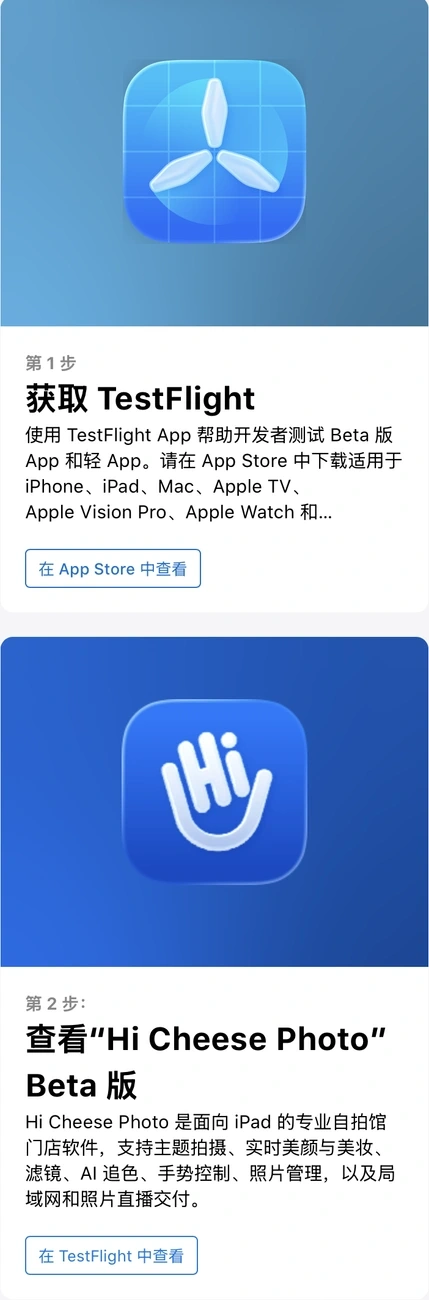 12
Tap "Accept," Then "Install"
Confirm that the name is Hi Cheese Photo, tap "Accept," and then tap "Install."
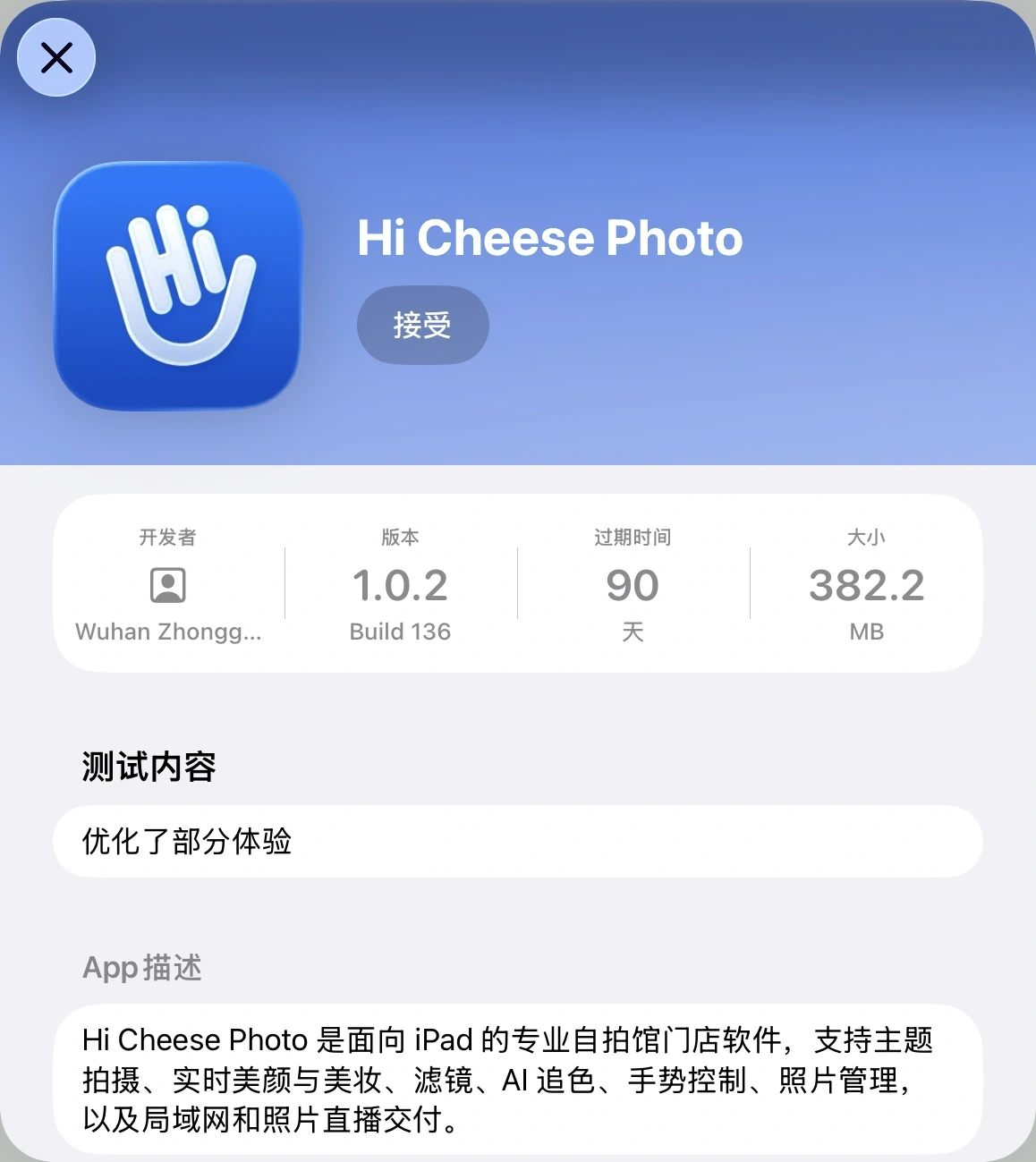 1
Does the Button Show "Update" or "Open"?
If the invitation was accepted before, you may see "Install," "Update," or "Open" directly. Tap "Install" to download; tap "Update" to update while keeping the current app; if "Open" appears, you can enter the software directly.
Wait for Download Completion, Then Tap "Open"
A circular progress indicator or remaining time means the download is in progress. Stay online and wait until the button changes to "Open," then tap it. You can also return to the iPad Home Screen and tap the Hi Cheese Photo icon.
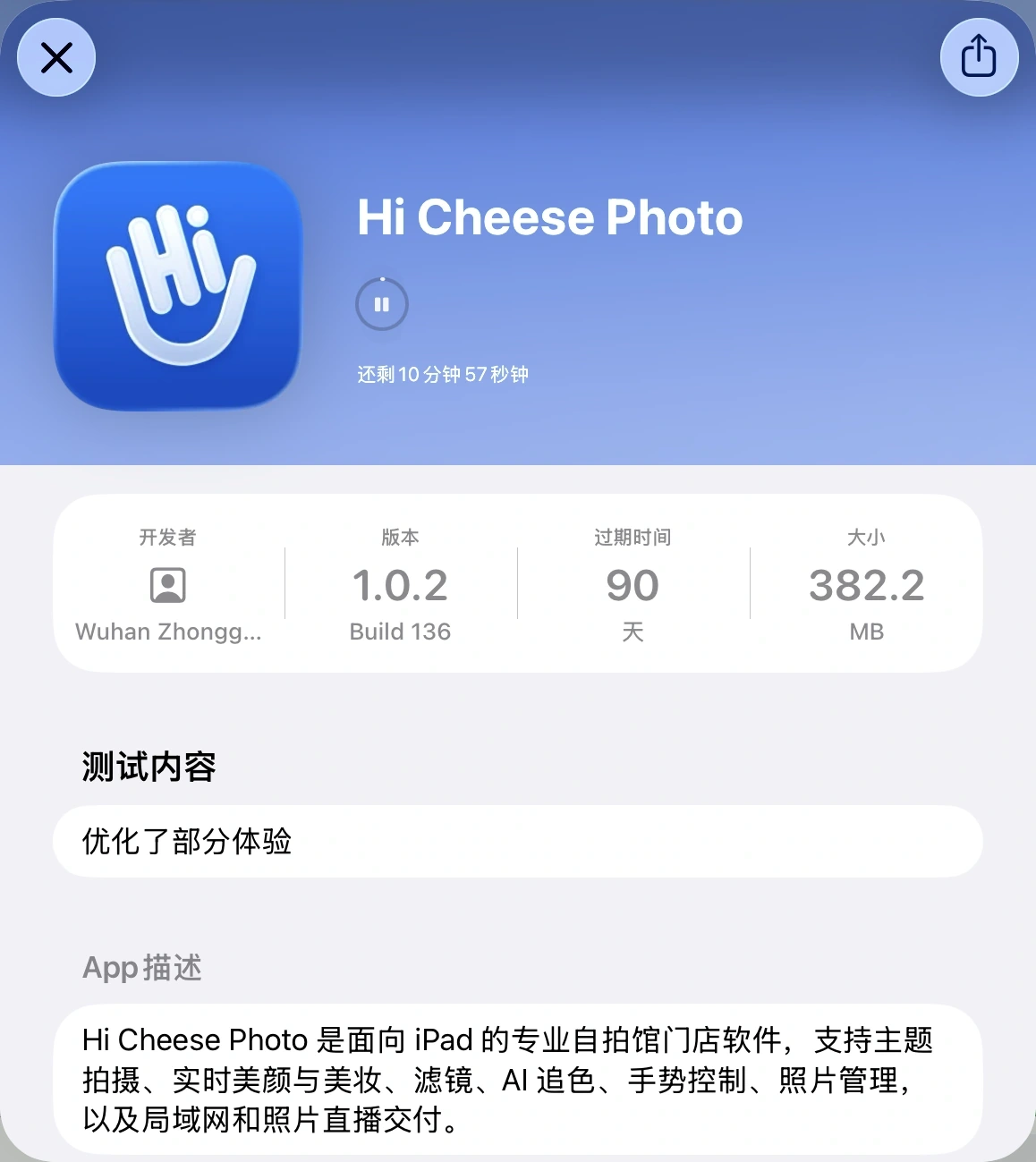 1
View Download and Update Instructions
The remaining time is a network estimate, not a fixed waiting period. The version, size, and time shown in screenshots are for reference only.
When updating, tap "Update" directly in TestFlight. Do not uninstall the existing app, or photos and settings may be lost.
If You Are Stuck, Follow the Relevant Instructions
Open the issue that matches what you are experiencing.
"Device or System Incompatible" Appears
Hi Cheese Photo is available for iPad only. This installation invitation cannot be accepted on an iPhone. Open the link on an iPad and confirm that you are downloading the iPad version of Hi Cheese Photo.
The system must be iPadOS 17 or later. Check the iPadOS version in Settings → General → About. If it is below 17, update it in Settings → General → Software Update.
If installation still fails, send the system version and a screenshot of the message to a technician.
The Spinner Does Not Stop, or the Download Is Very Slow or Fails
First close and reopen TestFlight; do not uninstall it. If it still does not work, switch to an available Wi-Fi network, wait briefly, and try again. Restart the iPad if necessary.
Open Settings → General → iPad Storage and try to keep at least 10 GB available.
Only "Redeem" is shown; Hi Cheese Photo is missing
Return to this guide, tap the invitation link in step 3, and then tap "View in TestFlight." If it still does not appear, check whether the App Store is still using the original account.
The Test Is Full or No Longer Accepting New Testers
Send a screenshot of the message to a company technician and wait for confirmation of an available invitation. Do not tap Install repeatedly.
Installation Complete: Continue with Software Authorization
After installation, obtain company authorization before using the app.
Installed: View the Software Authorization GuideUpdate through TestFlight Later
After receiving an update notice from the company, tap "Update" in TestFlight.
View Update and Validity Information
TestFlight is Apple's official test-distribution tool. Apple allows each test build to be used for up to 90 days from its upload date; this is not the term of the software purchase authorization. The company will arrange version updates during that time. After receiving notice, update through TestFlight before the old version expires to continue using it. If no update is visible near expiry, contact technical staff.
Invitation access depends on current capacity and status; it is not permanently open.View Apple's Official Installation Instructions · View Apple's Official Apple Account Sign-In Help