
Sign In to Your Apple Account on iPad
Complete these steps on the iPad where the app will be installed. The email invitation is not a password, and support team does not need to sign in for you.
- Where to Do This
- Settings on the This iPad
- Completion Sign
- The Account Is Under Your Control, and the App Store Works
Open "Settings" and Look at the Top Left
If you see "Apple Account" or "Sign in to your iPad," tap it. If your name is already shown, first confirm that this is an account you are authorized to use; there is no need to sign out and sign back in. Button labels may vary slightly between iPadOS versions.
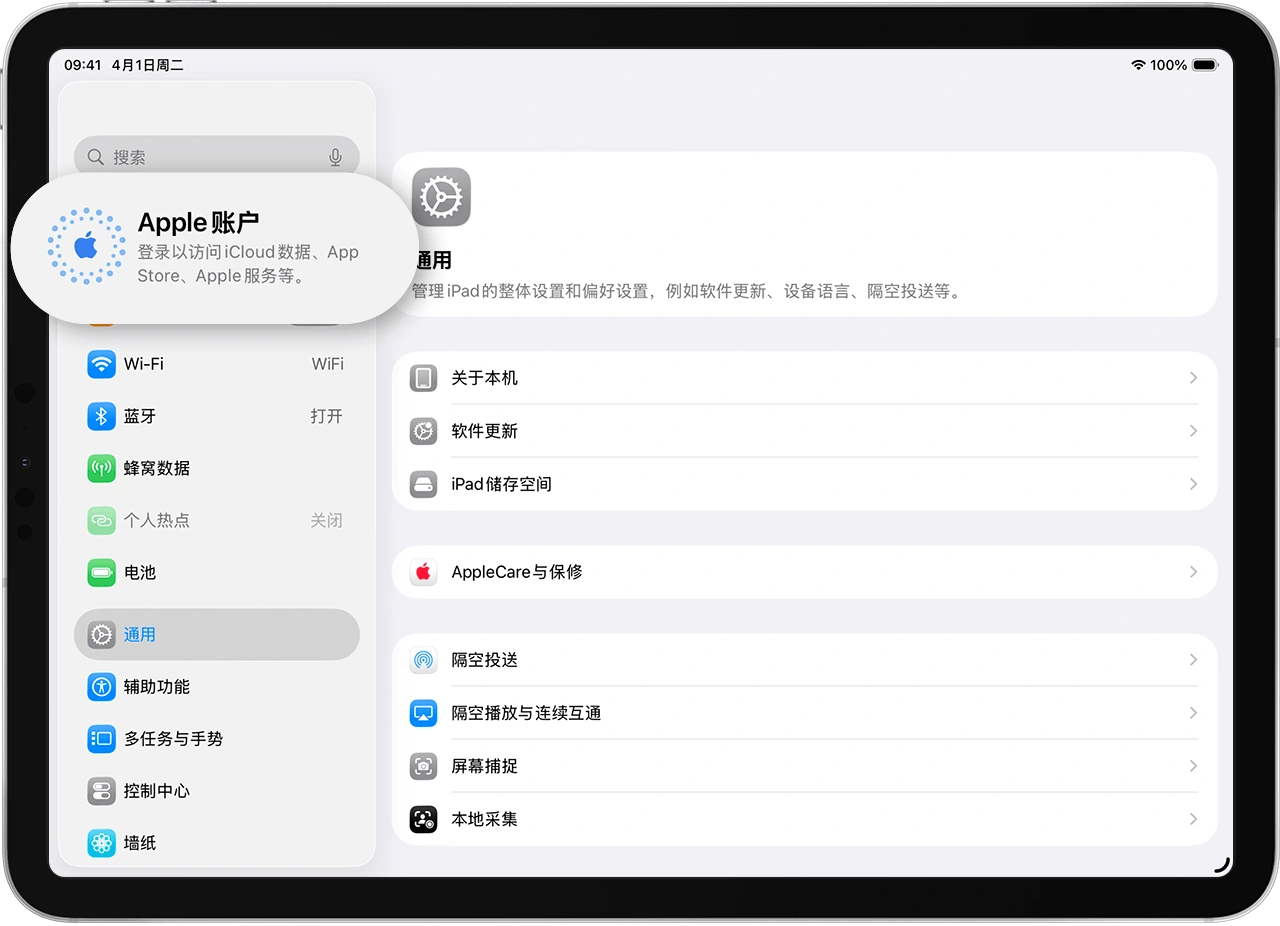
This is Apple's official iPad interface, not a screenshot from this customer's device. Earlier system versions may say "Sign In to iPad." If your own name already appears here, confirm that the account belongs to you; there is no need to sign out and back in.
Image provided by Apple. The blue boxes and numbers are this site's operating annotations; the original interface has not been alteredView the Original Apple SourceChoose Manual Sign-In
Select "Sign In Manually" and enter the Apple Account email address or phone number, then enter the password yourself. If a six-digit verification code appears, check a trusted device or text message and complete verification on the iPad.
How to Return When the Verification Email or Text Is on Another Screen
If the verification code is on your phone, read it there and enter it on the iPad. Do not send the invitation email address or verification code to anyone else. If you are viewing the code in Mail on the same iPad, swipe up from the bottom and pause to open the App Switcher, then return to Settings and continue. On other models, use the system's standard method for switching apps.
Afterward, check that the top-left of Settings shows an account you are authorized to use. Do not sign out of an existing account merely to try again.
Confirm That the App Store Also Works
After signing in, return to Settings and confirm that your account is shown. Open the App Store and tap the account profile picture to check that you are signed in. If you are prompted to review your account information the first time you use it, complete the information as instructed. Media & Purchases may use a different account. If you see an unfamiliar account, contact the person responsible for the device before making any changes; do not switch accounts without checking.
Confirm the Result
Selections are only for checking on this page and will be cleared after a refresh. They do not mean support team has confirmed them.
If You Forgot the Password or Cannot Sign In
Stop guessing the password repeatedly, and do not send it to support team. Follow the official recovery process on the account troubleshooting page.
Open Account Troubleshooting