
After Receiving the Invitation, Find the Redemption Code
Accept or redeem the invitation on the iPad where you plan to install Hi Cheese Photo. You may read the email on a phone, but do not tap Accept first on another phone, especially one using a different Apple Account.
- Where to Do This
- Email on a Phone or iPad; Install on the This iPad
- Completion Sign
- Your valid invitation is open and you know where to continue
Open the Email Inbox Registered with the Company
Open the email account registered with the company on your phone or iPad and search for TestFlight. If you cannot find it, check the spam and promotions folders. First confirm that the company has notified you that "the invitation has been sent."
Email Not Found: View Troubleshooting StepsConfirm That This Is a Hi Cheese Photo Invitation
Check the app name and blue Hi icon in the email. The phrase "invited you to test" in the English subject means that you have been invited to participate in testing. Use only the invitation sent to you, and do not forward the invitation link or redemption code to anyone else.
If You Receive Multiple Invitations, Use the Email Confirmed for This Installation
If you are unsure which email to open, tell the company the email time and app name and ask your contact to confirm. Do not search online for a general invitation code, and you do not need to join the developer team.
Tap and Accept the Invitation on the This iPad
First open the received email on the this iPad, then tap "View in TestFlight." If a later page shows a confirmation such as "Accept" or "Agree to Test," first verify the software name, then confirm according to the actual prompt.

If you first see the email on a phone, only read its contents or note the redemption code. Do not accept the invitation first in TestFlight on the phone. The email recipient account is not necessarily the Apple Account. When you finally accept or redeem the invitation, use the account currently signed in to TestFlight on the this iPad. The email shown in the image is for reference; accept the invitation on the this iPad.
If the Webpage Shows a Redemption Code, Record It First
- On the invitation page, find the redemption code area that says to enter the code in TestFlight. It is usually below the installation instructions. Do not copy the URL from the browser's address bar.
- Touch and hold the redemption-code text, adjust the selection, then tap "Copy." If the text cannot be selected, write it down character by character.
- If you receive the email on your phone but install on the iPad, the simplest method is to read the code from the phone and type it carefully on the iPad. Copying it on the phone does not necessarily let you paste it on the iPad.
- Preserve every letter, number, and capitalization exactly. Do not add spaces, line breaks, or punctuation. Use the content shown on your own page; do not pad the code to match the length in an example image.
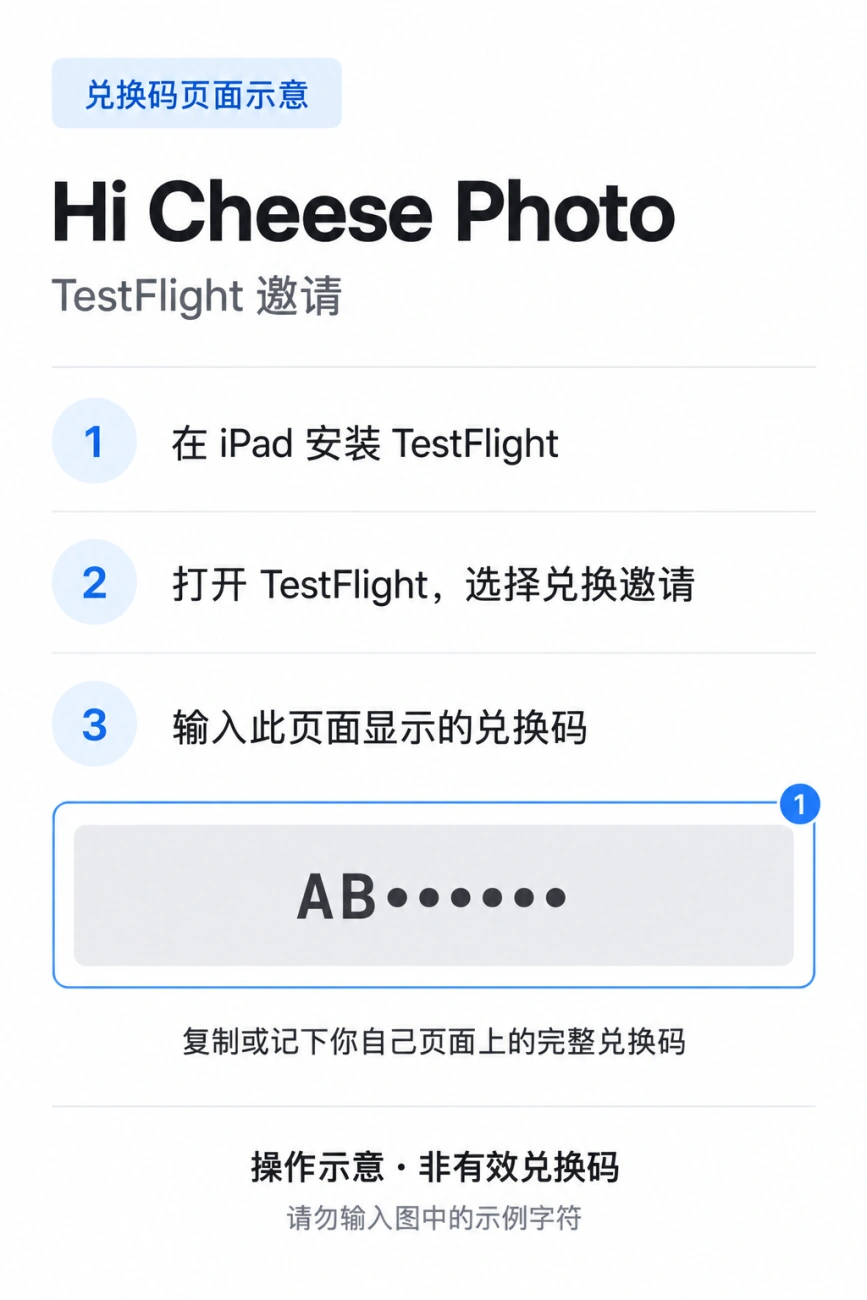
If text is unclear in dark mode, switch the device viewing the email to light mode and reopen the invitation. If still unclear, contact the company; do not guess characters.
Open TestFlight on the iPad Where the App Will Be Installed
If TestFlight is not yet installed on the iPad, download Apple's TestFlight from the App Store first. Seeing the invitation on a phone does not mean the app is already installed on the iPad.
View the Complete Guide to Downloading TestFlightContinue on the iPad with the Redemption Code
Keep your invitation email or redemption-code page available to view. The next page will show you the sidebar at the top-left of TestFlight, the account avatar at the bottom-left, and "Redeem Invitation."
I Have the Redemption Code: Redeem It on the iPadNo Redemption Code or the Link Displays an Error
If the Hi Cheese Photo page opens directly in TestFlight, continue by accepting and installing it. If you only see a message saying the invitation has expired, been revoked, or cannot be redeemed, save the exact message and contact the company privately to check the invitation. Do not enter codes found online.
Open Invitation Troubleshooting