
Redeem the Invitation and Install on iPad
Complete the following steps on the this iPad. Confirm the Apple Account currently used by TestFlight before accepting or redeeming the invitation. Do not accept it first on a phone using a different Apple Account.
- Where to Do This
- TestFlight on the This iPad
- Completion Sign
- The Specified Version Is Installed and the Build Matches
Prepare the iPad and Your Own Invitation
- Confirm that Apple's TestFlight is installed on this iPad. If it is not installed, first see TestFlight Download Guide。
- Open the invitation email you received. If the page provides a redemption code, copy it or write down the complete code first. If the email is on your phone, you can also read the code from the phone and enter it on the iPad.
First Check Which Page You Are On
Still in the email: Tap "View in TestFlight." Already have a redemption code: Continue with the sidebar steps below. Already on the Hi Cheese Photo page in TestFlight: Go directly to "Accept the Invitation, Then Tap Install" on this page.
View the Invitation Email and Redemption Code ExamplesOpen TestFlight and Tap the Sidebar Button in the Top-Left Corner
Find and open TestFlight on the iPad Home Screen. If the list on the left is collapsed, tap the sidebar button in the blue box below. If the list is already visible, do not tap it again.
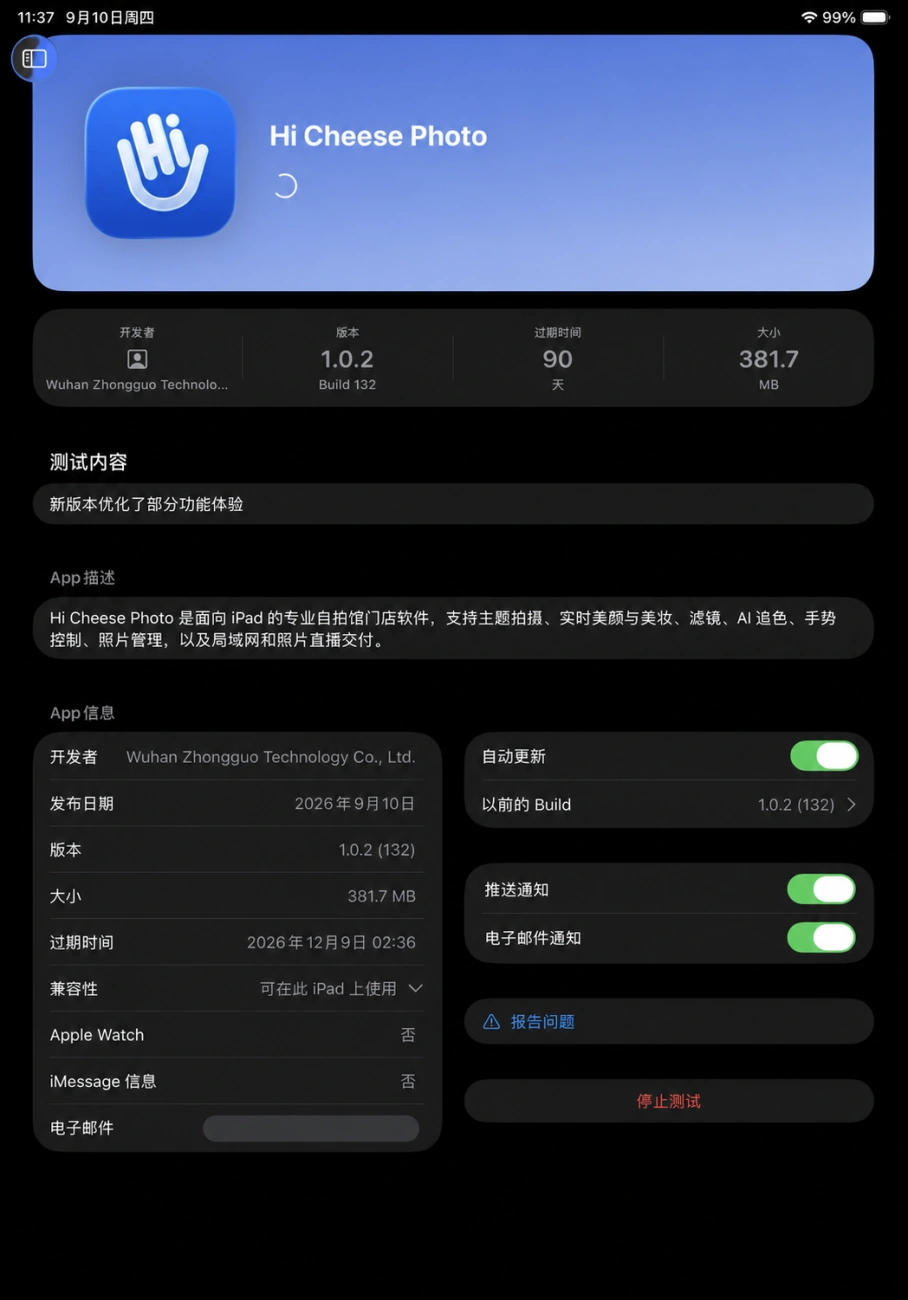
Tap the Profile Icon in the Bottom-Left Corner
After expanding the list on the left, look at the bottom-left corner of the screen and tap the circular account icon. Depending on the account, it may show a photo, initials, or the default profile image, but it is always in the same place. The first time you use TestFlight, even if Hi Cheese Photo is not yet listed, find this account button first.
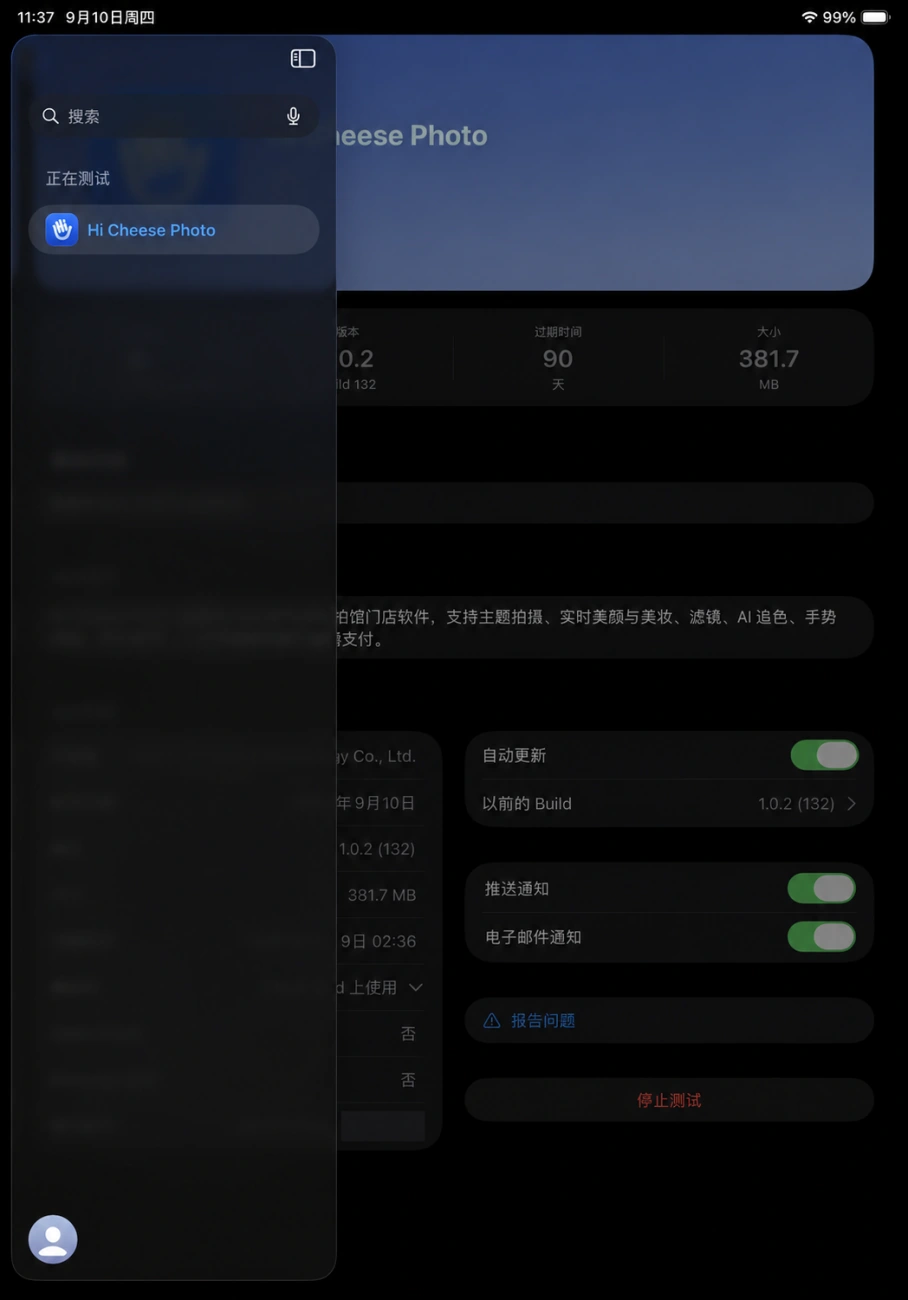
If Not Signed In, Sign In Yourself First
If the account section asks you to sign in, follow the on-screen instructions to sign in to an Apple Account you are authorized to use. Enter the password and complete device verification and verification-code steps yourself. If your own account is already shown, there is no need to sign out and sign back in.
If you cannot sign in, first check your Apple Account and "Media & Purchases" in iPad Settings, and confirm that the App Store works. If an unfamiliar account appears, do not switch accounts without checking; confirm with the person responsible for the device first.
Cannot Sign In to an Apple Account: View the Illustrated GuideThe invitation recipient email address may differ from the current Apple Account. Before redeeming, confirm that the account on this device is the one you intend to use.
The email address that receives the invitation does not have to match the Apple Account email address. Do not switch the Apple Account on the iPad just to open the email, and do not accept the invitation using the Apple Account from another phone. If the invitation has already been accepted with the wrong account, keep the message and contact official technical support for verification. Do not repeatedly switch accounts or uninstall the app.
Tap "Redeem Invitation" in the Settings Window
After confirming the account, find and tap the blue "Redeem Invitation" option in the same Settings window. It is below the account information and above "Automatic Updates for New Apps," not in the device list.
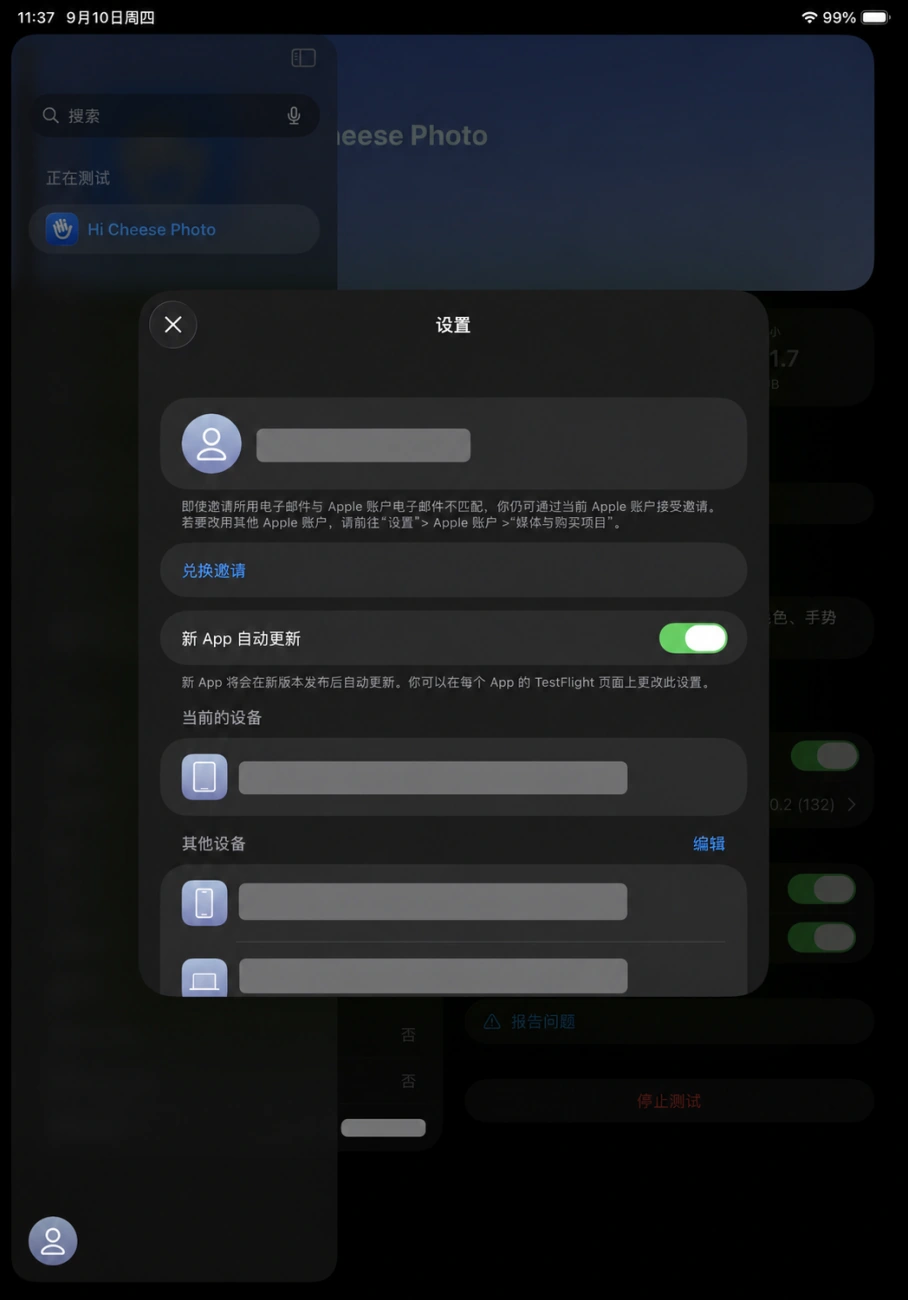
Enter the Complete Redemption Code from the Invitation Webpage
- When the redemption-code field appears, tap the field first to display the keyboard.
- If you copied the redemption code on the same iPad, touch and hold the input field, then choose "Paste." Otherwise, carefully type it exactly as shown on the invitation page on your phone.
- Check every character and its capitalization again, and remove any accidental spaces or line breaks. Enter your own complete code, not the example shown in the guide.
- Tap "Redeem" or the corresponding confirmation button in the dialog, then wait for the result. After successful redemption, continue by checking Hi Cheese Photo. If the code is reported as invalid or revoked, do not enter it repeatedly; contact the company to check the invitation.
Accept the Invitation, Then Tap "Install"
- After redemption, find Hi Cheese Photo and verify its name and the version announced by the company.
- If you see "Accept" or a confirmation asking you to join the test, follow the prompts to accept it first. An account that has already accepted may show the Install button directly.
- When you see "Install," tap it once to start the download. If an older version is already installed, you may see "Update" instead. If installation is complete, "Open" appears.
- Keep the network connection stable and the battery sufficiently charged, then wait for the button to change to "Open." A spinning indicator alone does not mean installation is complete.
Follow This Installation Order Apple's Official TestFlight Guide. The version available to you is determined by the page on this device and the company's notice.
When You See "Open," Confirm Installation
When installation is complete, tap "Open" and confirm that Hi Cheese Photo launches. Check the version number and Build on the app details page in TestFlight. The screenshot below shows version 1.0.2, Build 132. For future updates, follow the version specified in the company's latest notice; you do not need to keep looking for Build 132.
The TestFlight redemption code and software authorization are separate steps
The TestFlight redemption code comes from the Apple invitation webpage you received and is used to accept the test invitation. The device code in Hi Cheese Photo is this iPad's registration number. Send it to the company after installation so it can process software authorization; do not enter either code in the other field.
Complete Installation, Then Register the Device
Return to this iPad and open Hi Cheese Photo. Follow the next page to send this device's code, then complete owner linking and company authorization. If an older version or photos are already present, keep the existing app; do not try to resolve authorization issues by uninstalling and reinstalling it.
Next: Copy and Send the Device Code